
Controls and the quick menu
The demo's quick menu offers seven controls: Back, History, Skip, Auto, Q.Save, Q.Load and Prefs. Reading is a click or a keypress to advance; everything else is on that bar, which is standard visual-novel practice.
The demo's interface is a visual novel interface, which means almost everything you need is on one bar at the bottom of the screen. Seven controls, no tutorial, and a lot of reading. Here is what each one does and when it earns its place.
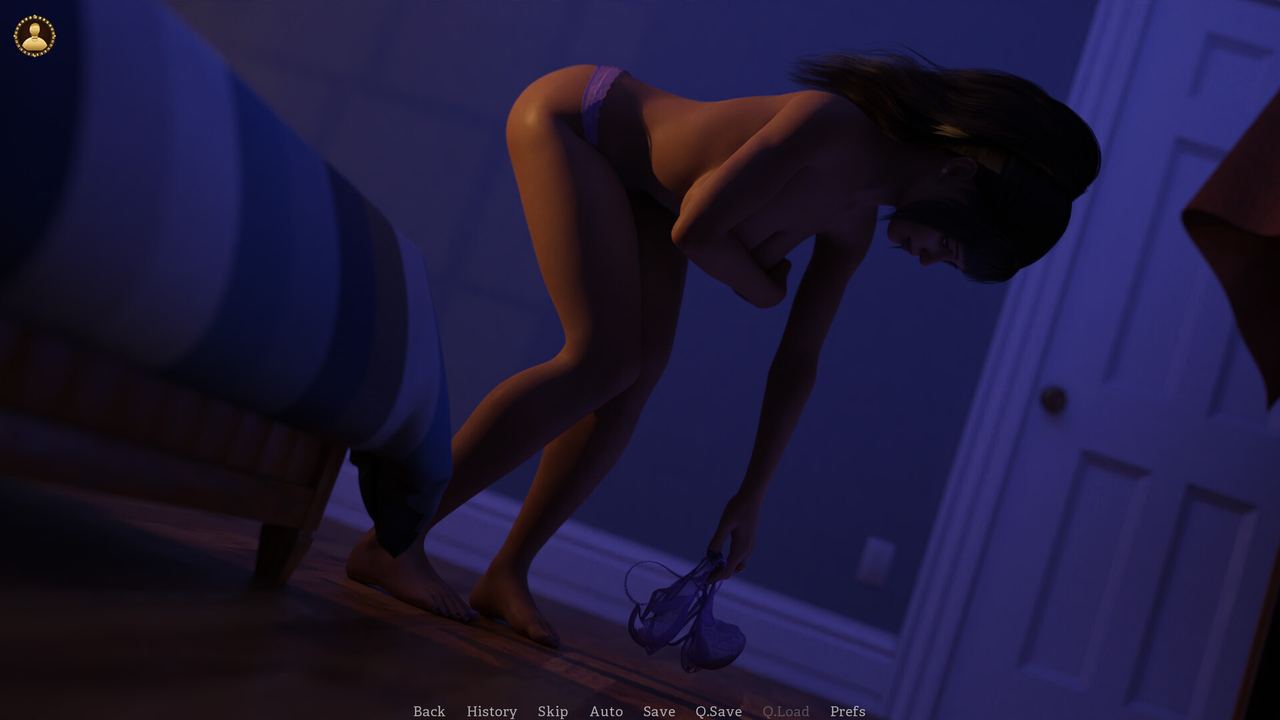
The quick menu, item by item
The bar reads, left to right: Back, History, Skip, Auto, Q.Save, Q.Load, Prefs.
| Control | What it does | When to use it |
|---|---|---|
| Back | Steps the scene backwards one line | You clicked past a line you wanted to re-read |
| History | Opens the backlog of everything already shown | You missed a name, a date or a hint |
| Skip | Fast-forwards text, usually until the next choice | Replaying a branch, or re-reading a scene you know |
| Auto | Advances dialogue automatically | Reading hands-free, or when you want the pacing to be the game's |
| Q.Save | Writes a quick save at the current line | Before a choice you might want to undo |
| Q.Load | Restores that quick save | To take the other branch without replaying |
| Prefs | Opens preferences | Text speed, volume, display options |
That is the standard set for the genre, and its presence tells you something useful: the game expects you to rewind, replay and compare. A visual novel that did not care about branches would not put Skip and History in the first row.
Reading, and advancing
Advancing is a click or a keypress depending on your setup, and the dialogue box fills in either instantly or at a text speed set in Prefs.
Two habits worth forming early:
- Use History, not Back, when you miss something. History keeps the whole scene; Back walks the scene state backwards, which is slower if you need several lines.
- Set text speed once, in Prefs. The default is usually fine for a first run, but a second run at a faster speed makes branch comparison much less tedious.
Skip is a tool, not a cheat
Skip exists for two legitimate uses: getting back to a branch point you have already read, and re-reading a scene for detail without waiting through it again.
In the demo, Skip is particularly useful because the opening is short enough to replay. If you want to see what a different choice does, skip to the decision, take the other line, and read from there. That is the fastest way to learn what the relationship counters are measuring.
Auto and pacing
Auto advances dialogue on a timer. In a game with this much atmosphere, Auto is surprisingly effective: it stops you from clicking through a scene at reading speed and forces a rhythm closer to the one the writer intended.
It is also the setting to use if you are playing with headphones and want the audio to carry the scene. Set it, put the mouse down, and let the dialogue arrive.
Save and load, in the quick bar
Q.Save and Q.Load are the fast pair: one slot, current line, no menu. They are not a replacement for named saves, which live in the game's save menu, but they are the right tool for the specific job of "I want to try the other option and come back".
| Situation | Use |
|---|---|
| About to make a choice | Q.Save first |
| Want to see the other branch | Q.Load, take the other line |
| Want to keep a run | Named save in the menu |
| Want to undo one line | Back |
Preferences
Prefs is where display, text speed and audio live. Two settings are worth checking on first launch:
- Text speed. Set it to something you can actually read, not to the fastest setting because it feels efficient.
- Display mode. The dossier screen is text-dense; full screen at your monitor's native resolution is where it reads best.
What is not on the bar
There is no controller scheme advertised, no online component and no account system in the demo. The interface assumes a mouse or trackpad and a keyboard, which is the genre norm and matches the store listing: single-player, with Family Sharing enabled.
Accessibility notes
The demo does not advertise accessibility options, and the settings that matter most for a text-heavy game are text speed and display mode. If you rely on larger UI text or high-contrast modes, check the Prefs screen before committing to a long session — and check it in the demo, which costs nothing.
For the reading side of the interface, read the demo walkthrough. For saves specifically, read saves and quick save.
Keyboard habits worth knowing
The demo's own bar lists the controls, but the keyboard shortcuts behind them are the genre's conventions rather than something the store page documents. In practice, most visual novels map advancing to Space or Enter, skipping to a held modifier, and the menu to Escape.
Two habits make the reading smoother whatever the exact bindings:
- Keep one hand on the advance key and one on the mouse. Choices are usually clicked, text is usually keyed.
- Learn the History binding early. It is the control you will reach for most often, and it is the one that saves a replay when a name goes past.
If a binding does not work as expected, Prefs is the place to check before assuming the demo is broken — some builds expose a key-config screen there.
The control set was read from the demo's own quick menu, and the store facts from the official Steam listing, checked on 3 November 2026.